
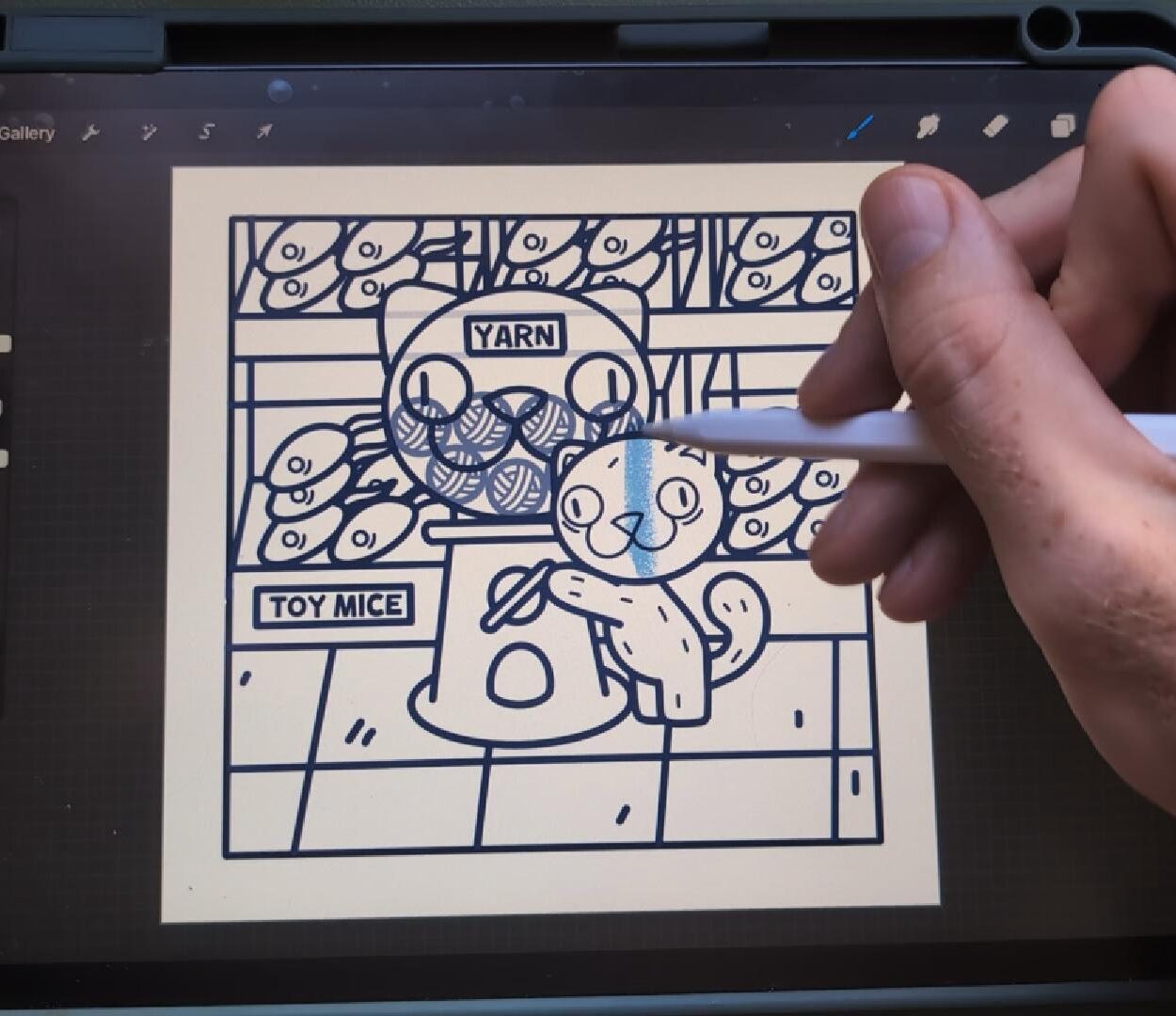
Colouring a digital page in Procreate is easier than you might think – all you need is a JPG, PNG or PDF of an image, and a few quick layer settings to make the process smooth.
This method is perfect if you’ve downloaded a colouring page online (like from my site!) or scanned in one of your own drawings. By following the steps below, you’ll be able to colour underneath the line art without messing around with tricky selections or colouring over the lines.
Steps
1. Create a New Canvas
Open Procreate and start a new canvas – any size that works for your image or project.
2. Insert Your Colouring Page
Tap the Actions (wrench icon) > Insert a photo, and choose the JPG, PNG or PDF file you want to colour.
This will add your image to a new layer. Adjust the size if needed so it fits the canvas properly.
3. Change the Layer Mode to Multiply
Open the Layers panel, tap on the layer with your image, and then tap the little letter ‘N’ (which stands for “Normal”). Scroll through the blend modes and choose ‘Multiply’.
This setting makes it so anything you colour underneath the image layer shows through clearly, while keeping the lines crisp and clean.
4. Set the Image Layer as a Reference
In the same Layers panel, tap on the image preview and choose ‘Reference’. This allows you to drag and drop colour into the spaces of your drawing using a separate layer – super handy!
5. Add a New Layer for Colouring
Tap the + icon to add a new layer. Make sure this new layer is underneath your reference layer.
Pro tip: Keep your reference layer at the very top of your layers list — it needs to stay on top to work properly.
Time to Start Colouring!
You’re all set. Now you can:
- Use the brush tool to colour freehand
- Or drag and drop colour into each section (just hold the colour circle and drag it into an area)
Because the reference layer is on top and set to Multiply, your colours will show up beneath the line art – no more awkward colouring around the edges.
Bonus Tips
- Use multiple layers to keep things organised (e.g. one for skin, one for background, one for clothing)
- If drag-and-drop colour doesn’t fill all the way, hold your pencil after dropping and slide left/right to adjust the ColorDrop Threshold
- Zoom in for cleaner edges and use the eraser tool for any touch-ups
Want Free Colouring Pages?
I’ve got a bunch of chibi-style colouring pages available to download for free.
👉 Click here to check them out
Happy colouring!